


How to use page sections to build pages
Page sections are the cornerstone of all content on your website.
Your homepage, contact page, about us, etc. are built from different sections.
It is also possible to use sections on your product pages and category pages. This is done via the options extended product page and extended category page.
To add a page section to a page, start by going to "Pages" in the left menu. Then click the page you want to edit.
Now you can see the existing content on the page in the blue sections. On the right you can see a list of grey sections. These sections can be added to the page by dragging them into the blue sections.
There are many different types of sections, each designed to display content in different ways. Some are used to show images, while others can display a product list or a contact form.
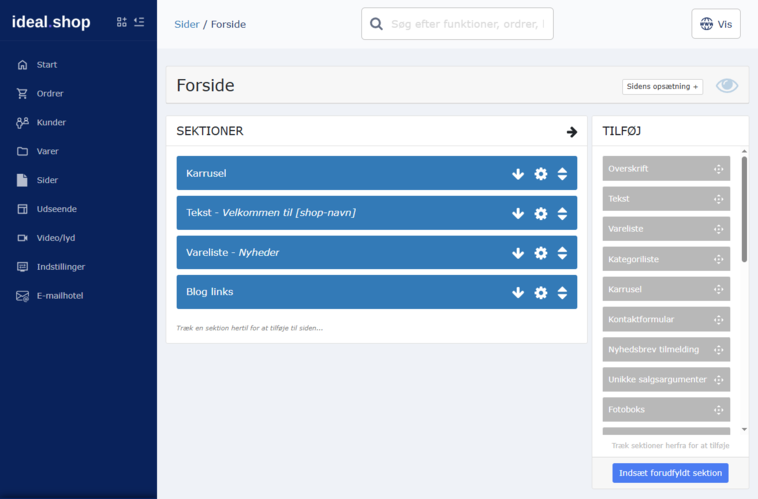
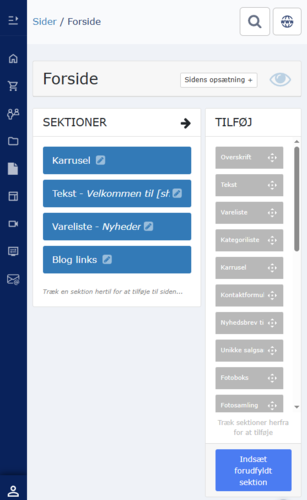
Pre-filled / pre-designed sections
The grey page sections that can be dragged in will always be empty to begin with. If you want to insert a page section that already has some content, you can press the blue button below the grey sections that says "Insert pre-filled section".
Copy or hide sections
If you want to copy a section to another page, you can do so by clicking the cogwheel in one of the blue sections. There you can choose to make the section hidden/invisible, and you can copy it to another page/product/product category.
Changing the section's appearance
By opening a blue section you can change its content. This can, for example, be texts and images. If you want to change the section's visual appearance (typically things like colours, text sizes or border width) there are several options for this via Design editing.